Already a Canon Owner? Register your product for software and firmware updates and opt in to receive personalised tips and exclusive offers
Support
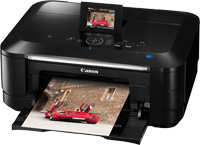
Canon PIXMA MG8150
Download drivers, software, firmware and manuals and get access to troubleshooting resources for your PIXMA product.
Drivers
For certain products, a driver is necessary to enable the connection between your product and a computer. On this tab, you will find the applicable drivers for your product or in the absence of any drivers, an explanation of your product's compatibility with each operating system.
Helpful Information : To access software, manuals and other content please use the tabs above.
Software
Software
Manuals
Apps & Functions
Firmware
FAQs & Help
Important Information
Error Codes
Specifications
You might also need...
-
Contact Us
Contact us for telephone or e-mail support
-
Repair
Locate a repair centre and find other useful information regarding our repair process
-
Recycling
Learn more about Canon's Cartridge Recycling Programme
-
Canon Account
Register your product and manage your Canon account