Windows Ready Print
Microsoft Windows Ready Print, Windows Protected Print (WPP) and Canon Devices
Microsoft's Windows Ready Print represents a significant shift towards a more secure, standardised, and driverless printing ecosystem built around the IPP Class Driver and Windows Protected Print (WPP). While these technologies bring security, management, and compatibility benefits particularly for ARM-based devices, they can also reduce access to advanced Canon printer features, device monitoring capabilities, print quality optimisations, and application integrations. Organisations should begin testing and evaluating their printing environments now to ensure a smooth transition while Canon-specific drivers remain available and supported.
-
Microsoft is transforming the Windows printing experience through the introduction of Windows Ready Print (formally Modern Print Platform) and Windows Protected Print (WPP). These changes are designed to improve security, simplify printer management, and reduce dependency on manufacturer-specific printer drivers.
As part of this transition, Windows increasingly uses its built-in Internet Printing Protocol (IPP) Class Driver rather than printer-specific drivers supplied by manufacturers such as Canon.
For organisations that rely on Canon devices, understanding these changes is essential to ensure continued access to key printing features and workflows.
-
Windows Protected Print (WPP) is Microsoft's next-generation printing architecture designed to provide a more secure and standardised printing experience.
When WPP is enabled:
- Only Microsoft's built-in IPP Class Driver can be used
- Third-party printer drivers are automatically removed
- Installation of third-party printer drivers is blocked
- Printing security is enhanced by reducing the attack surface associated with traditional print drivers
WPP works alongside Windows Ready Print, Microsoft's preferred method of communicating with printers using:
- Internet Printing Protocol (IPP) drivers
- eSCL scanning (a Mopria® scanning standard)
- Universal Print (Microsoft's cloud-based printing service)
The long-term objective is to move away from device-specific print drivers and towards a standardised, driverless printing model.
- Only Microsoft's built-in IPP Class Driver can be used
-
The IPP Class Driver is Microsoft's generic printer driver that supports IPP-enabled printers.
Benefits
- Built directly into Windows
- Compatible with Windows Ready Print
- Fully supported by Windows Protected Print
- Supports ARM-based Windows devices
- Works with Mopria® certified printers
Limitations
As a generic driver, the IPP Class Driver does not provide access to all manufacturer-specific functionality.
Compared to Canon's dedicated drivers, users may experience:
- Fewer print settings and configuration options
- Reduced print-quality optimisation controls
- Limited device status and monitoring information
- Reduced access to maintenance and management features
- Built directly into Windows
-
When Windows installs the Microsoft IPP Class Driver instead of a Canon-specific driver, some features may become unavailable.
Printing Features
You may notice:
- Fewer paper type selections
- Reduced paper size options
- Missing advanced layout and finishing features
- Limited print customisation settings
Device Monitoring
The following information may no longer be available:
- Ink or toner level reporting
- Maintenance cartridge status (if applicable)
- Device warnings and error notifications
- Detailed printer health information
Canon Software Compatibility
Some Canon applications rely on Canon-specific driver functionality and may not operate correctly when the IPP Class Driver is being used.
Examples include:
- Easy-PhotoPrint Editor
- PosterArtist
- Fewer paper type selections
-
Canon advises that print output quality may vary when using the Microsoft IPP Class Driver instead of Canon's dedicated print drivers.
Organisations with high-quality or specialized printing requirements should thoroughly test output quality before fully adopting an IPP-only environment.
-
The adoption of ARM-powered Windows devices, including systems based on Snapdragon® processors, continues to grow.
This introduces an additional consideration for Canon printing environments.
Key Points
Traditional Canon print drivers were designed primarily for Intel and AMD processor architectures and are generally not available for Windows ARM devices.
As a result:
- ARM-based Windows PCs rely on the Microsoft IPP Class Driver
- Printing is supported when Canon devices offer Mopria® compatibility
- Organisations planning ARM deployments should validate printing requirements in advance
- ARM-based Windows PCs rely on the Microsoft IPP Class Driver
-
Most modern Canon printers support Mopria® printing standards, helping ensure compatibility with:
- Windows Ready Print
- The Microsoft IPP Class Driver
- Windows Protected Print
To confirm compatibility, consult the official Mopria® Certified Products List.
- Windows Ready Print
-
To help address functionality gaps when using the Microsoft IPP Class Driver, Canon provides the Canon Print Assistant App, available through the Microsoft Store.
Benefits
The application can provide:
- Enhanced printing functionality
- Canon-specific settings and controls
- Improved integration within Windows Ready Print environments
In many cases, Windows downloads and installs the application automatically when a supported Canon device is detected.
For more information regarding the Canon Print Assistant App, please click here.
- Enhanced printing functionality
-
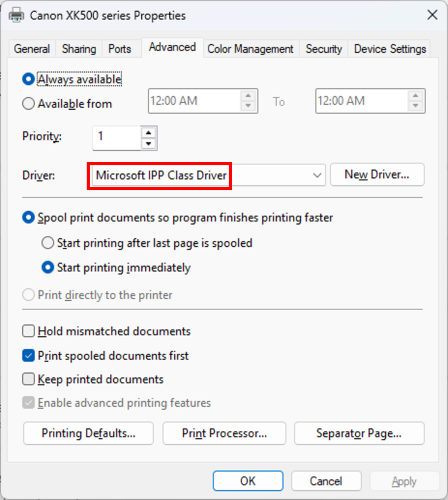
To determine whether Windows is using the Microsoft IPP Class Driver:
Windows 11
- Open Settings
- Select Bluetooth & devices
- Choose Printers & scanners
- Select your printer
- Open Printer Properties
- Select the Advanced tab
- Check the Driver field
If the driver displayed is Microsoft IPP Class Driver, Windows is using Microsoft's generic driver rather than a Canon-specific driver.
For example:
- Open Settings
-
Starting in July 2026, new printer installations will default to Windows Ready Print where supported.
When enabled:
- Windows prioritises the Microsoft IPP Class Driver
- Canon-specific drivers may not be installed automatically
- New printer installations typically use Microsoft's preferred printing framework
- Windows prioritises the Microsoft IPP Class Driver
-
If your environment requires Canon-specific functionality, administrators can disable Windows Ready Print preference.
Steps
- Sign in with an administrator account
- Open Settings
- Navigate to Bluetooth & devices → Printers & scanners
- Locate Default install printers using Windows Ready Print
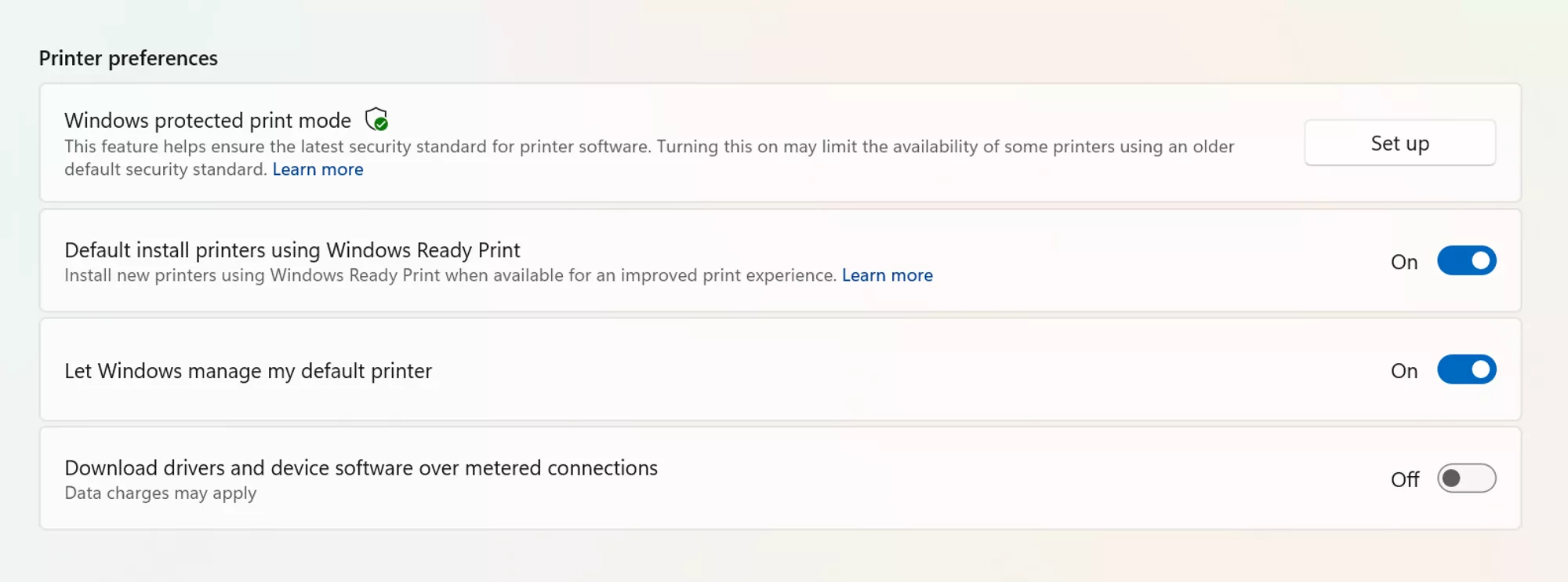
- Change the setting from On to Off
- Remove and reinstall the printer if required
- Restart the computer
This allows Windows to install and use supported Canon-specific drivers where available.
To disable this feature via Group Policy, go to:
- Launch Group Policy Editor
- Navigate to Local Computer Policy → Administrative Templates → Printers
- Find and select Configure Windows Ready Print driver ranking, then double-click to open it
- Select Disabled (to disable Windows Ready Print driver selection)
- Select Apply
- Select OK
- Sign in with an administrator account
-
Short-Term
Yes.
Windows Protected Print is currently disabled by default, allowing organisations to continue using Canon drivers where supported.
Long-Term
Microsoft's direction of travel is clear: Windows printing is moving towards IPP-based, driverless printing through Windows Ready Print.
While Microsoft has not announced a final mandatory transition date, organisations should begin assessing the impact and planning for future adoption.
-
To prepare for Microsoft's evolving print ecosystem, organisations should:
1. Audit Existing Printer Infrastructure
Identify:
- Canon devices in use
- Driver dependencies
- Critical print workflows
2. Test IPP Printing
Verify that key business processes operate correctly using the Microsoft IPP Class Driver.
3. Assess Print Quality Requirements
Pay particular attention to departments requiring advanced finishing or high-quality output.
4. Review ARM Device Strategies
If ARM-based Windows devices are being introduced, ensure printer compatibility has been validated.
5. Deploy Canon Print Assistant
Where additional functionality is required, consider deploying Canon's companion application.
6. Evaluate WPP Adoption
Determine whether WPP should be enabled based on security requirements and operational impacts.
7. Create a Migration Roadmap
Develop a structured plan before Microsoft's Windows Ready Print becomes the default standard across enterprise environments.
- Canon devices in use
You might also need...
Contact Us
Contact us for telephone or e-mail support
Service & Repair
Book a service, send a product for repair, or find out more about our service and repair process
Recycling
Learn more about Canon's Cartridge Recycling Programme
Canon Account
Register your product and manage your Canon account